
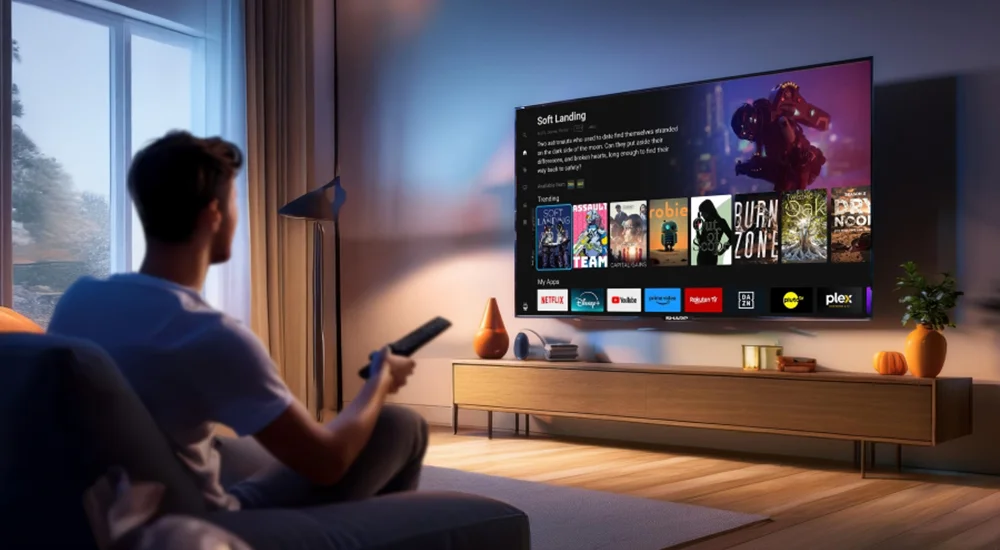
This complete walkthrough shows you how to get IPTV Smarters Pro on your Windows PC for free. We cover the download, installation, and how to use it with your subscription. Follow these simple steps to start watching.
Introduction to IPTV Smarters Pro for Windows
IPTV Smarters Pro is a popular app for watching live TV, movies, and series. The version 3.0.9 for Windows PC lets you enjoy your IPTV subscription on a bigger screen. This guide is for you if you want to install it easily and fix common problems.
What You Need Before You Start
- A Windows PC (Windows 8, 10, or 11).
- An active IPTV subscription from a provider.
- Your subscription details (URL, username, password).
- A stable internet connection.
Step-by-Step Installation Guide
Here is how to download and install IPTV Smarters Pro version 3.0.9 on your Windows PC for free.
Step 1: Download the App
First, you need to get the app file. Go to the official website using the button below. Find the download link for the Windows version. Click on it to download the
IPTV Smarters Pro
installer file (it will be a .exe file).
Step 2: Install the Application
Find the downloaded .exe file (usually in your ‘Downloads’ folder). Double-click the file to start the installation. A security warning might appear. Click ‘Yes’ or ‘Run’ to continue. Follow the simple setup wizard. Click ‘Next’ and then ‘Install’. Wait for the installation to finish. Finally, click ‘Finish’. The app icon will now be on your desktop.
Step 3: Launch IPTV Smarters Pro
Double-click the new
IPTV Smarters Pro
icon on your desktop to open it. The app is now ready for you to add your subscription.
Adding Your IPTV Subscription
To watch content, you must add your provider’s details. Follow these steps carefully.
- Open the IPTV Smarters Pro app.
- You will see a login screen. Do not use the ‘Login with Xtream Codes’ option at the top.
-
Instead, click on the button that says
‘Login with Playlist’
or similar. -
Now, enter the details given by your IPTV provider:
-
Playlist URL:
Enter the full URL they provided. -
Username:
Your subscription username. -
Password:
Your subscription password.
-
- Click ‘Add User’. The app will save your profile.
- Select your new profile and click ‘Login’. Your channels and videos will start loading.
Navigating Channels and Content
The app interface is simple. Here is a quick overview of the main areas.
Live TV Section
Click on ‘Live TV’ from the main menu. You will see a list of channel categories (like Sports, News). Choose a category to see the channel list. Click on any channel name to start watching. Use the on-screen buttons to change channels or see the TV guide.
Movies and Series
Click on ‘VOD’ (Video on Demand) for movies. Click on ‘Series’ for TV shows. You can browse by genre or search for a title. Select any movie or episode to play it instantly.
Favorites and Search
You can add channels or movies to your ‘Favorites’ for quick access. Use the ‘Search’ icon to find any channel or video by name.
Fixing Buffering Issues
Buffering is a common problem. Try these fixes if your stream stops or loads slowly.
Check Your Internet Connection
Buffering is often caused by slow internet. Run a speed test on your PC. For HD streaming, you need at least 10-15 Mbps. If your speed is low, restart your router or move closer to it.
Change the Video Player
IPTV Smarters Pro has different players inside the app. Go to ‘Settings’ in the app. Look for ‘Player’ or ‘Decoder’ options. Try switching from ‘HW’ to ‘SW’ decoder or vice versa. This can solve many playback problems.
Reduce Video Quality
If your internet is not very fast, lower the stream quality. While a video is playing, look for a settings icon (⚙️). Click it and select a lower resolution like 720p instead of 1080p.
Use a Wired Connection
Wi-Fi can be unstable. For the best experience, connect your Windows PC directly to your router with an Ethernet cable. This gives you a faster and more stable connection.
Conclusion and Final Tips
You have successfully installed
IPTV Smarters Pro 3.0.9
on your Windows PC. You can now log in with your subscription and enjoy your favorite TV channels and videos. Remember, the app is just a player. You need a reliable IPTV subscription for it to work.
For the official download and latest updates, always visit the source website. Keep your app updated for new features and bug fixes. Enjoy your viewing on the big screen!
Ready to start watching?
Visit the official website for the free, safe download.