
Neo Pro 2 IPTV ONTV – Streaming Stable et Illimité pendant 12 Mois

Abonnement NEO PRO 2 IPTV 12 Mois “IOS, ANDROID, Linux”
Abonnement NEO PRO IPTV de 12 Mois, Comportant Plus de 5700 Chaînes & VOD pour un Streaming de Qualité HD & 4K.
Supporte : Abonnement ipTV + VOD
Description
Abonnement NEO PRO IPTV de 12 Mois, comportant Plus de 2500 chaînes pour un Streaming de Qualité HD & 4K.
NEO PRO 2 IPTV Subscription gives you access to around 4,600 TV channels. You can expect one of the best qualities in the market of Internet protocol Television.
Our subscription includes around 130 channels in HEVC (h265), which the designers created for the people who want high definition.
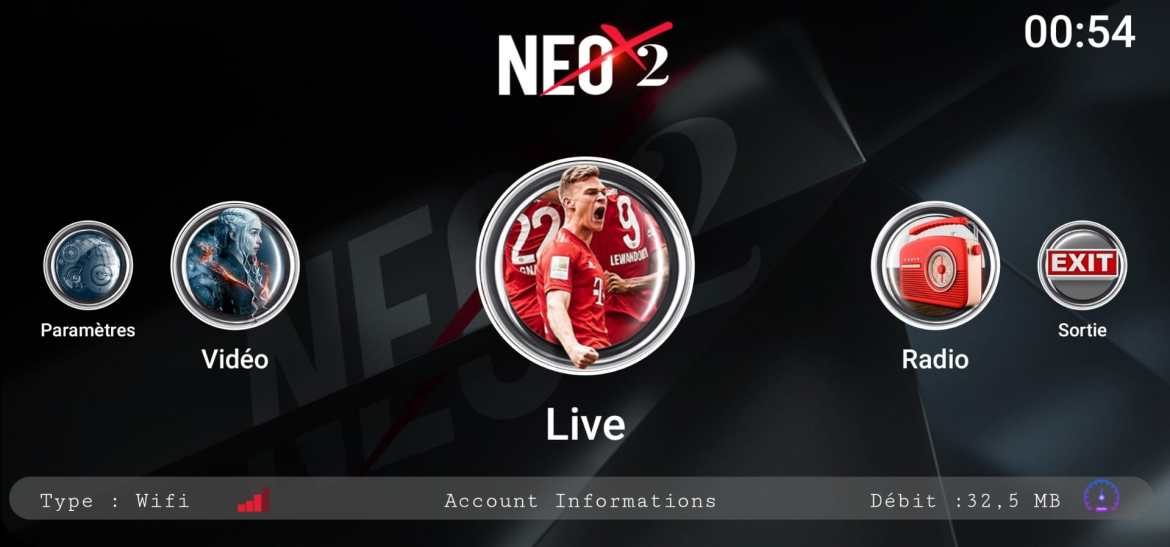
We provide an app with a new concept and design to facilitate its use, fluidity and zapping between guaranteed chains.
Also, our service has a Video on Demand service of more than 4,000 VOD including recent films and series of all categories with a weekly update.
The content is broadcasted and provided in many languages that include Arabic, French, Spanish, Portuguese, Turkish, Kurdish, Indian, and many other world languages.
Everything comes in several image qualities including 3D and 4K.
Compatibilité
Compatible avec :
Android (Smartphone, Tablette and Boxs)
Samsung / LG / SONY Smart TV
VLC
iOS (iPHONE / iPAD / Mac)
Xbmc / Kodi
Mag 25X / BLOMC
Enigma 2 (All DreamBOX, Vu Plus, AZbox, All Enigma2 Boxs)
Spark / Web TV
TVLIST
Vision CLEVER 1 / 2 / 3 & 4
GI Sunbird
Starsat Hyper and HD 7000
NEO265
Samsat 90 HD PLUS
EUROVISIO
Supported Systems by NEO PRO 2 IPTV
Smart TVs (Samsung and LG)
Computers
Android Boxes
Smartphones and Tablets
Amazon Fire TV Box
Apple iOS devices
Conditions d’utilisation

Abonnement IPTV Nécéssite un Débit Supérieur ou égal à 8 MB/s.
The channels that broadcast in HD and Full HD need up to 4Mbs of stable Ethernet or WIFI connection to work perfectly.
Une seule connexion par abonnement est autorisée.
L’abonnement sera lié de manière irréversible avec le premier périphérique utilisé.
Si vous utilisez le code sur plusieurs appareils, il sera bloqué automatiquement.
Fonctionnement
1- Place your order, in 1,3,6, or 12 months.
2- Pay: you will be contacted by email or WhatsApp.
3- Delivery via email: you will get your order info via email.
Utilisation avec VLC
LANCEZ VLC
CLIQUEZ SUR CTRL+N
COLLEZ LE LIEN SUIVANT ( HTTP://NEOTV.SIPTV-LIST.COM/SIPTV.M3U?CODE= ) SUIVIE DE VOTRE CODE
CLIQUEZ SUR LIRE
Qualité et performance
The service provides high quality live television and Video on Demand on your preferred device.
The service works worldwide as long as the customer has a good internet connection.
Any buffering that happens is very likely to be due to problems with your internet services.
Using Ethernet instead of WIFI is recommended for more stable connection.
Limitations
Le fournisseur reste responsable du contenu et de la disponibilité des chaînes.
Certaines chaînes peuvent être temporairement indisponibles.
Don’t expect to get any hardware with your subscription service.
A single subscription works on one device only.
Conclusion
NEO PRO 2 IPTV ONTV permet d’accéder à des chaînes TV et contenus VOD en streaming HD, Full HD et 4K.
Le service fonctionne sur plusieurs appareils avec une activation via email et une utilisation immédiate après réception des informations.
Basé sur fiche produit et description NEO PRO 2 IPTV
Mise à jour : 2026