
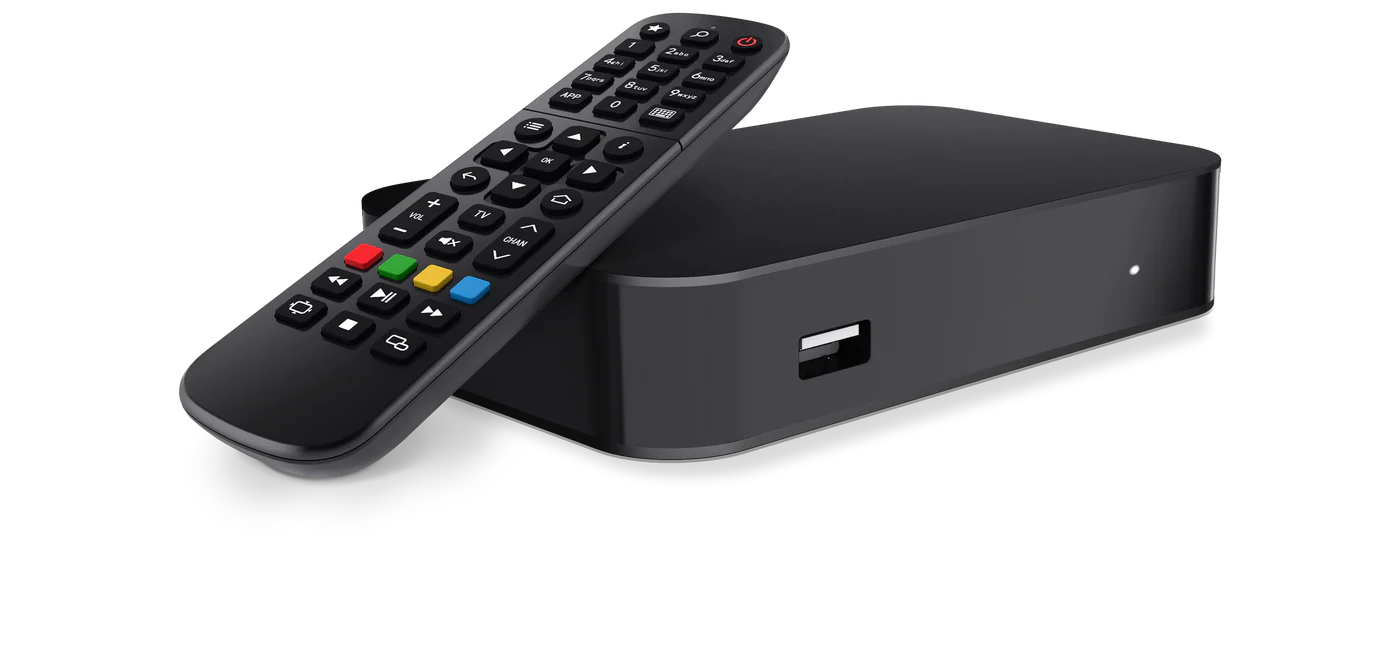
In 2026, this is all you need to know about IPTV and MAG TV Box.
As you look at different IPTV boxes, the word “MAG” keeps coming up.
It’s not just you. If you ask people on IPTV sites, about half of them will tell you to just get a MAG box and not worry about it.
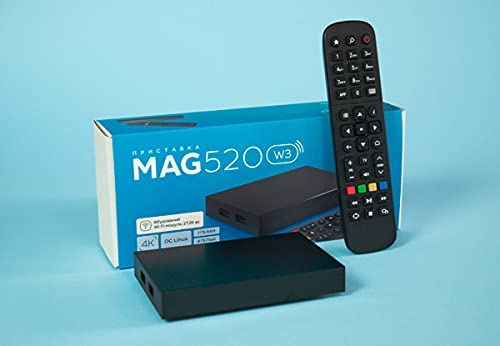
So here it is.
Fire Sticks and other Android TV sticks are not the same as MAG TV boxes. The only thing it can do well is watch IPTV. That’s all. No Netflix apps that get in the way, no updates to the app shop that break things, and no alerts. After plugging it in and entering your information, you can watch TV.
One last thing before we start. If you searched for “mag safe” and came across this page, that’s Apple’s iPhone charging device. Not at all the same. This piece is about the MAG IPTV box, which is made by Infomir. It’s just that the names sound alike.
What Does a MAG TV Box Do?

It works like a cable box, but it lets you watch TV shows online. It comes with an HDMI cable that you use to connect it to your TV and your Wi-Fi or computer. It gets TV channels from the internet instead of a satellite or cable line.
Since 2001, Infomir has been making these boxes. In more than 150 countries, more than 4,500 IPTV companies use them. These things are very important in this area, even if you’ve never heard of them.
MAG boxes are fun because they don’t do many other things. That is a good thing. Your Smart TV wants to update apps, sell you things, and show you ads that you didn’t ask for. A MAG box is the only way to watch TV. Things that are only meant to do one thing usually do that one thing very well.
What kind of MAG box should you get?
There are many kinds. Do not be scared of that. This is the easy choice:
• MAG 250, 254, 256, 322, 324, 349, and 420 are some old types. They still work well. A lot of people still use them. But they are older, so HD is mostly what you need to use.
• The MAG500A, MAG520w3, MAG522w3, MAG524w3, and MAG540w3 are some of the newer models in the MAG 5xx line. These are faster, can handle 4K with HDR, and are the ones you should buy today if you want to buy something new.
Find the “w3” at the end of some model names. That pretty much means the box has Wi-Fi. If it doesn’t have “w3,” you’ll need to use an Ethernet cable to connect it to your router. I think this is a good idea anyway, but we’ll talk about that another time.
How to Make Your MAG Box Work with IPTV
Now it’s time to set up. Some people are scared here, but it’s not that hard. There are only two things you need:
• This is your MAC address that you give to your IPTV service.
• It’s given to you by your service company.
That’s pretty much all of it. Let me tell you what it is.
Step 1: Hook everything up.
From the MAG box to your TV is the HDMI line. Connect the power line to the wall. You can either connect to your box’s Wi-Fi or plug an Ethernet cable into your computer.
You should use the Ethernet wire if you can. Wi-Fi does work, but IPTV streams are much more likely to get stuck on Wi-Fi, especially at night when everyone else is online.
Step 2: Get your MAC address.
Lay your MAG box on its back. One is stuck on the bottom. Something that starts with 00:1A:79 and has letters and numbers after it is what you want. That’s your MAC address.
Not able to find the label? To get to it, go to Settings, then System Settings, and finally About.
Write that down and send it to your IPTV service by email. For your service to begin, they need it. You can’t skip this step, or else nothing will work.
Step 3: Type in the Portal’s URL.
The website address your service provider sends you is known as a “portal URL.” This is what it looks like: http://server-name.com:8080/c? Just put that into the box now.
This is how it works:
• From the main screen, press the SETUP button on your remote. It could have a small gear icon.
• Turn your machine on and off.
• Then Servers
• Next, the portals
• In the Portal 1 name box, type anything you want. The “IPTV” works. Or the name of the company that gives you service. It doesn’t matter.
• In the Portal 1 URL box, type the exact web address that your service provider gave you. I really mean it. Nothing will load if you type one letter wrong.
• To save, press OK.
Step 4: Place the NTP server (Do Not Forget This!)
A lot of guides don’t include this, and people then don’t understand why things don’t work right. Launch the Settings app and select Servers. Next, select General. In the “NTP server” line, type in pool.ntp.org (or us.pool.ntp.org if you live in North America).
What does this do? It checks the box’s clock to make sure it’s right. It may seem easy, but if the clock is off, your TV guide won’t work right and some channels might not even load.
Step 5: Start the Portal up again
To leave, press EXIT twice. You can restart the box or pick “Restart Portal” from the menu. The page will open with a yellow bar. When it’s done, your channels should be there.
It’s usually one of these three things if it doesn’t work:
• When you put in the portal URL, you got it wrong (check each letter).
• Your MAC address hasn’t been set up yet by your service.
• Your account isn’t working right now.
Call or text your service provider. Most of the time, it only takes a minute or two to fix.
How to Use the MAG Box Remote
The controls that come with your MAG box are pretty good. It’s not like a phone where you can swipe to move through menus; this is used to change TV stations. To be honest, that’s what you want from TV.
Two AA batteries are needed. They don’t come with the box, so you need to get a pack before you start.
There is no connecting, setting up Bluetooth, or anything else like that. Plug it in and point it at the box. It will start working right away.
Buttons You’ll Use
• The red power button on top of the box turns it off. Don’t unplug it every night; just leave it on.
• Menu—goes back to the main screen
• OK picks the thing you’re looking at, and EXIT takes you back one step.
• You can change the volume and the station, just like you’d expect. The shortcut keys F1 through F4 can be changed.
You can also use your MAG remote to control your TV.
A lot of people don’t know this, but it’s cool. You can also change the volume and turn on and off your TV with your MAG touch pad. That means you don’t need two remotes.
For most MAG remotes (250, 254, 322, and others like them), the steps are a little hard to follow, but here’s the main idea:
• Keep holding down the SETUP button until the LED turns on.
• Point your regular TV remote at the MAG control.
• First press the power button on your TV remote. Then press the MAG remote button that you want to use to turn on the TV, which is usually the A/V button.
• To change the volume, do the same thing.
• Press On/Off and A/V at the same time to save it.
Want to turn everything around? Right click and press OK at the same time for two seconds. Five times, the red light flashes, and then it starts over.
How to Fix a Broken Remote
Everybody goes through it at some point. Put these in this order:
• Change the batteries. Even if they look great. Do it first.
• Hold it up to the camera on your phone and press the buttons. If the remote works, you should see a small light flash on your phone screen. This is the infrared light that your phone camera can see but not your eyes. It doesn’t work if there is no light.
• You can use a USB keyboard to handle the MAG box while you get things in order. The arrow keys work like a control.
• I need a new key. They might be cheap on Amazon or Infomir’s page. There are other apps for Android phones that have an infrared gun built in.
The MAG Box or the Android Box? Which is better?
The short answer is that it depends on what you want.
To get a MAG box,
• You don’t need anything else besides IPTV.
• The way you want it to work should stay the same for years.
• Your IPTV service named MAG.
• You like having a remote control for your TV that works.
If you need an Android box,
• Plus, you need Netflix, YouTube, Disney+, or any other app that lets you run multiple IPTV apps and pick the one you want to use.
• You like to put things together and mess with them.
Either one is fine. MAG is good for people who want to “set it and forget it.” Android is for you if you like having options.
What goes wrong and how to fix it
• The door won’t open. Make sure that your ISP still has your MAC address on file. Once more, check the portal’s URL. Most of the time, one of these is wrong.
• The channels wouldn’t work. Use an Ethernet cable instead of Wi-Fi if you can. If you can only connect via Wi-Fi, change your router’s settings to the 5 GHz band. A lot of people use the 2.4 GHz band most of the time.
• There’s no sound. Go to Settings and then Audio to change between Stereo and Digital. Switch to a different HDMI connection. Strange sound problems happen a lot of the time because of bad links.
• The TV list doesn’t have anything. Check out how the NTP server is set up. If the time on the box is wrong, the guide won’t show up correctly.
• Want to see some adult content? The PIN is 0000 by default if you didn’t change it.
This is a question that many people ask:
• Do I have to buy each station separately? Yes. The MAG box is the hardware. You still need to pay for an IPTV service to get the stations. They’re not the same.
• Does it work where I live? You can use the box anywhere. The programs you get will depend on the IPTV service you choose.
• Can I hook up two different IPTV sources to the same MAG box? Yes. You can save more than one link on the box and go back and forth between them. Make sure that each site has your MAC address.
• Which is it? MAG 254 or MAG 524w3? If you want to buy in 2026, get a Series 5 MAG 524w3 or something close. It has a better chip, 4K, and Wi-Fi built in. The MAG 254 still works, but it’s very old.
• Should I use a VPN? Many people do it, but you don’t have to. For some reason, some ISPs slow down IPTV data. A VPN can stop that from happening. The VPN is easy to set up when it is on your router. This will keep the MAG box safe at all times.
• Is everything okay? The box is okay everywhere. Not always. If the IPTV service you pay for streams channels they don’t own, it may not be allowed. This part depends on the country you live in and the provider. If you use good services, you’ll be fine.
That being said
MAG boxes have been around for more than 20 years for a reason. Their lives aren’t exciting, and they don’t try to do everything. They work even when other things break because of this.
Setting up can take twenty minutes the first time. You don’t think about the box much after that. You just turn on the TV and pick which shows to watch.
A MAG IPTV box is what you need if you just want to watch TV like everyone else and don’t want to mess around with apps and settings.