





smarters-pro.net / pages
People watch TV differently now that they can stream it. You don't need a cable box, a satellite dish, or a long-term subscription to watch thousands of live channels and on-demand entertainment anymore. You only need a gadget that works with the internet and the correct IPTV service. This page has everything you need to know about IPTV, from what it is to how to set up your device, manage channels, add subtitles, keep your kids safe, and get the finest visual quality on your screen.
IPTV is short for Internet Protocol Television. IPTV sends TV shows and movies via the internet instead of through a cable wire or satellite dish. This is the same connection you use to surf the web and watch videos online.
When you watch a live channel through an IPTV service, the video is sent to your device in real time over the internet utilizing protocols. Movies and TV shows that you can watch on demand function the same way: the file is streamed to your device while you view it, so you don't have to download it first.
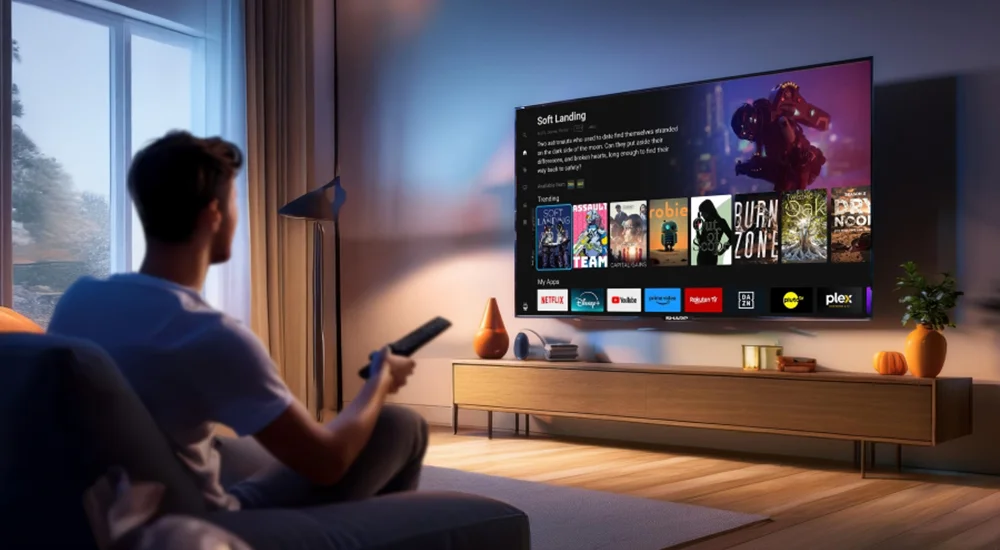
The app that connects your device to the Smarters Pro servers is called IPTV Smarters Pro. Once you log in with your membership information, the app offers you access to the full channel list, the on-demand library, and all stream quality settings. The UI is easy to use with your remote, mouse, or touchscreen.
Smarters Pro works on almost all devices. The best decision depends on where you watch, how big of a screen you want, and how much money you want to spend on hardware.
| Device | Best for | Notes |
|---|---|---|
| Smart TV | Living room, big screen | Samsung, LG, Sony, and Android TV. Download from the app store. |
| Fire Stick | Any TV with an HDMI port | Cheap and easy to carry. All generations supported. |
| Android Box | Power users | More storage and computing power than the Fire Stick. |
| iPhone / iPad | Watching on the move | iOS 12 and later. Get it from the App Store. |
| Windows / Mac | Desktop or laptop | Download the Smarters Pro desktop app from our site. |
| MAG Box | Dedicated IPTV box | Use the portal URL from your subscription email to set up. |
All four quality levels are included with every Smarters Pro subscription. The program automatically picks the optimum quality for your connection, but you can easily change it at any moment from the stream settings.
The best picture you can get. Great for Smart TVs that are 55 inches or more.
Most home TV displays show it well and in great detail. Most people should use this.
A clear picture on tiny displays. Good for phones, tablets, and connections that are slow.
Even on the weakest connections, playback is smooth. No buffering when speeds are low.
There are more than 17,000 live channels available, so it can take some time to find the ones you watch the most. IPTV Smarters Pro has a number of features that can help you sort your channel list and find your favorite shows more quickly.
Subtitles make it easier to understand things in a foreign language, watch them in a quiet place, or follow along when the audio isn't clear. IPTV Smarters Pro lets you watch channels and on-demand content with subtitles in the stream.
To turn on subtitles, launch a channel or movie, hit the settings or player options icon on the screen, and then seek for the option that says Subtitles or Audio track. You will see a list of languages you can choose from if the stream has built-in subtitles. Choose your language, and the subtitles will show up right away.
The availability of subtitles for films and episodes in the on-demand section depends on the content. Most international movies and popular series include subtitle tracks in multiple languages. If a title doesn't have subtitles, that indicates the stream doesn't have them either, and you can't add them yourself.
If your kids use the same device as you, parental controls help you limit their access to certain channels or types of content. IPTV Smarters Pro has a built-in PIN lock that keeps channels from being opened without a password.
The quality of your streaming is mostly based on your internet connection. If your connection is slow or inconsistent, even an excellent IPTV service will buffer. These instructions will help you make the most of your setup.
You may download IPTV Smarters Pro for free on any platform that supports it. This is where to look for it on each device.
| Device | Where to get it |
|---|---|
| Samsung TV | In the Samsung Smart Hub app store, look for IPTV Smarters Pro. |
| LG Smart TV | Use the LG Content Store app to search. |
| Android TV or Box | Get it from the Google Play Store. |
| Fire Stick from Amazon | Use the APK link from our Installation Tutorials page with the Downloader app. |
| iPhone and iPad | Get it from the Apple App Store. |
| Windows PC and Mac | Go to the Application page on our website and download the desktop app. |
On this page
01 — What is IPTV
02 — Choosing your device
03 — Stream quality
04 — Channel management
05 — Subtitles
06 — Parental controls
07 — Internet optimization
08 — Download & install
Need some help?
You can reach our support team by WhatsApp or email at any time of day or night.
Get in touch with supportQuick information